Importance of Mobile Security
Secure Your Lock Screen
Smartphones contain a wealth of your personal information, ranging from personal messages and photos to banking information. If your device is lost or stolen, a locked screen is your first line of defense. Use the strongest option your device supports - a long alphanumeric password beats a PIN, and a PIN beats a pattern.
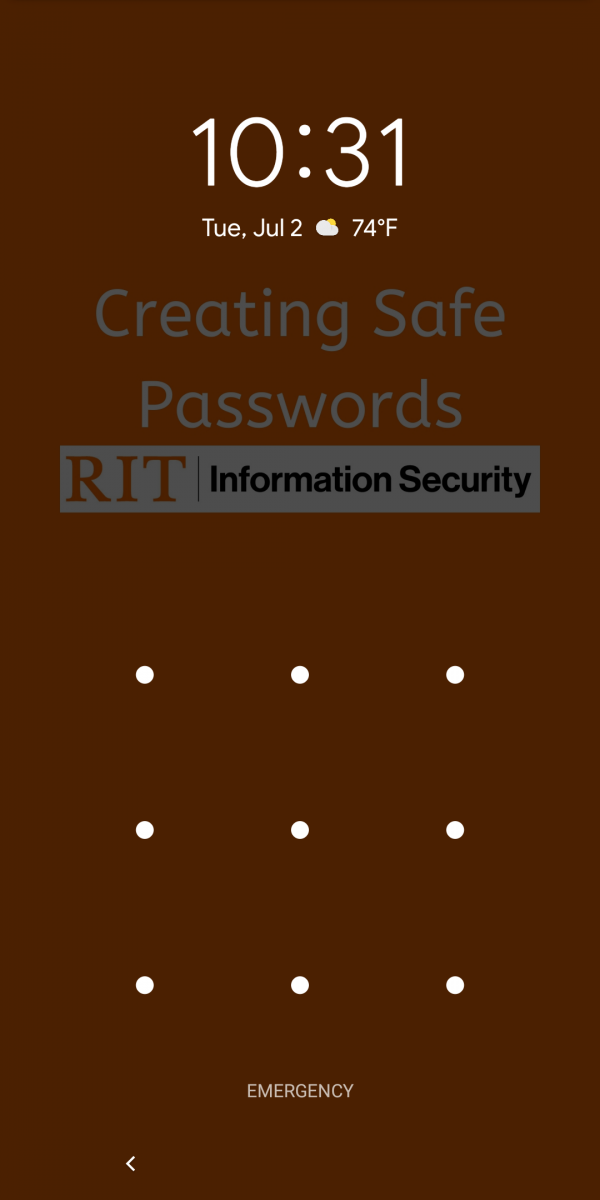
- Uncheck the "make pattern visible" option in the settings. This makes it more difficult for people around you to see your pattern.
- Use six or more nodes.
- Don't use a simple or common pattern. 40% of patterns start in the top left corner, and 77% start in one of the four corners.
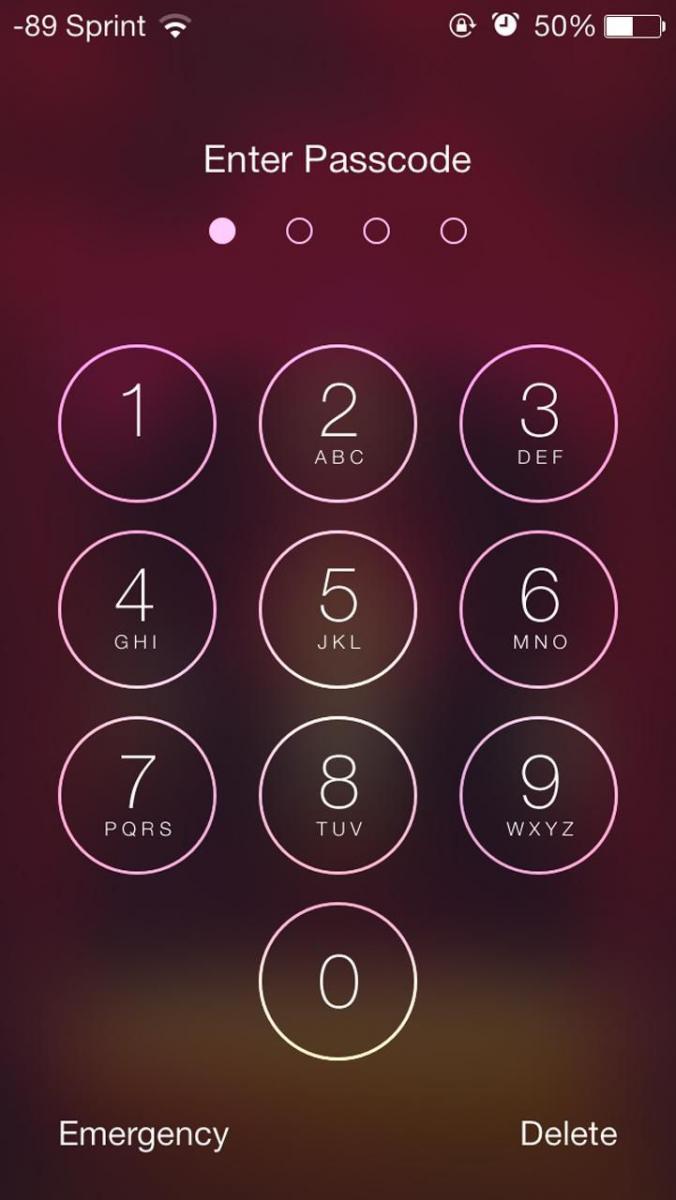
- Use at least a six-digit PIN where allowed.
- Avoid simple number sequences (123456), simple patterns of numbers (147147), and just repeating the same number (11111).
- Don’t use a significant date like a birthday or anniversary.
- Don’t use any part of your address as your PIN number.
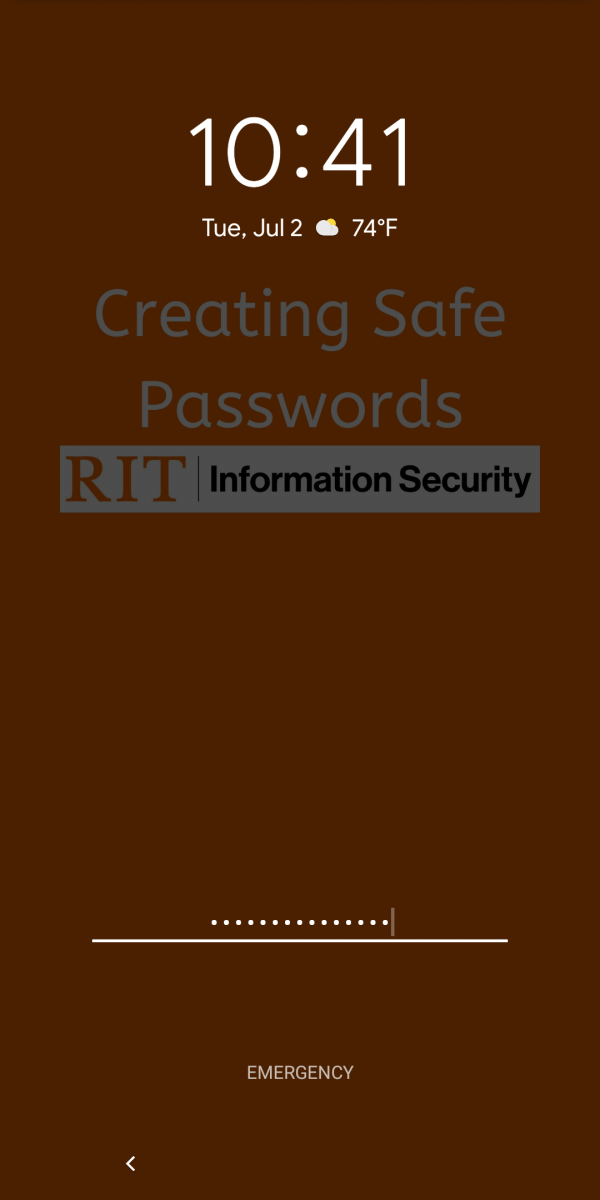
- Long alphanumeric passwords are stronger than either a PIN or a pattern.
- A common mistake is using passwords like 123456 or password.
- Always remember that the longer the password, the more secure it is.
See our recommendations for creating strong passwords when choosing yours.
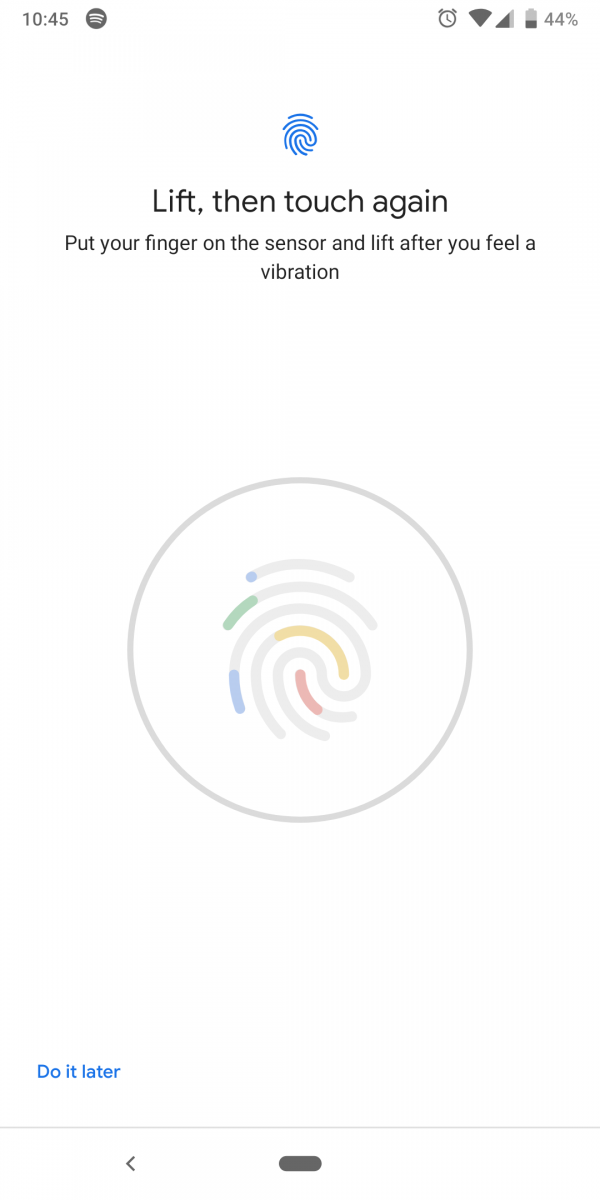
- There is a 1 in 50,000 chance that someone else's fingerprint will unlock your phone.
- There is a 1 in a million chance that someone else's face will unlock your phone.
- Combine this with a strong pattern, PIN or password for the best security.
A growing number of apps and sites now support passkeys - a phishing-resistant sign-in method tied to your device's biometrics or screen lock, instead of a password. Where an app offers one, a passkey is generally the strongest option available.
Multi-Factor Authentication with Duo Mobile
RIT uses Duo for multi-factor authentication on campus systems including eServices, myCourses, myInfo, myLife, and PeopleSoft, with more systems added over time. Install the Duo Mobile app and turn on push notifications - approving a login is then a single tap. Duo uses only a small amount of data (about 100KB a day) when you're off Wi-Fi, and none at all when you're on it.
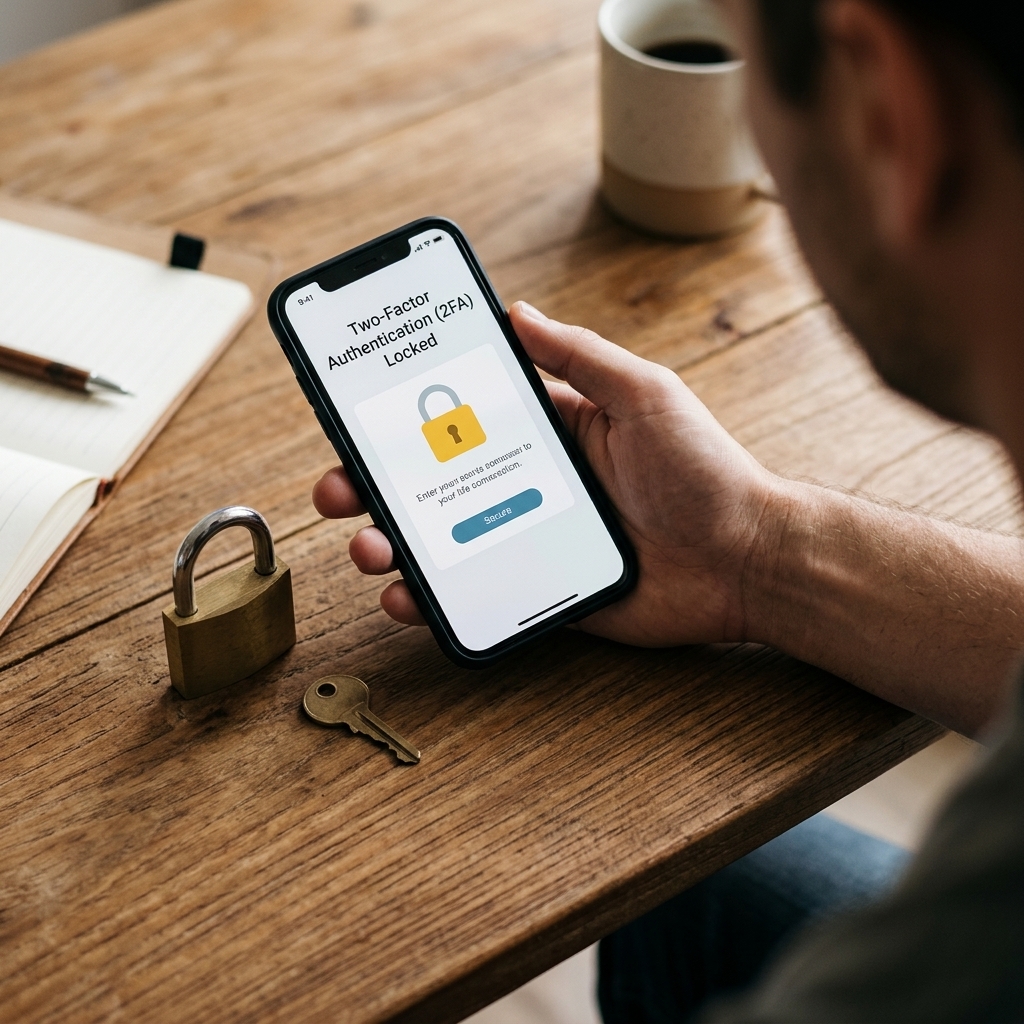
MFA is one of the most effective things you can do to protect your accounts on a mobile device: even if your password is phished or stolen, an attacker still can't get in without your phone.
Set up and manage Duo:
- RIT Multi-Factor Authentication (MFA) — enrollment, lost/replaced phones, bypass codes
- MFA Fatigue — how to recognize and report suspicious Duo prompts
Getting Duo push notifications you didn't request? Don't approve them — see MFA Fatigue above, and contact the RIT Service Center.
Avoid Questionable Mobile Apps
It's not always easy to tell whether a mobile app is safe before you download it, but a few habits go a long way. Stick to the Apple App Store and Google Play, also avoid third-party app stores, and be cautious even with a phone manufacturer's own store. Fake copycat apps that mimic a popular app's name and icon remain a common trick for spreading malware, so don't assume an app is legitimate just because it looks familiar. Read reviews before installing, if an app has negative reviews mentioning bugs, unexpected permissions, or security concerns, treat that as a warning sign; some apps are loaded with spyware or other malware.


Before downloading an app:
- Read the reviews.
- Only download from the official Apple App Store or Google Play — other sources aren't as safe.
- Research the app's publisher.
- Keep Google Play Protect (Android) or equivalent app-verification settings turned on.
- Don't enable "developer mode" on your phone.
- Consider security software for extra protection (see Do I Need Third-Party Security Software?, below).
Do I Need Third-Party Security Software?
Whether you need third-party security software, and what kind all depends heavily on your phone's operating system.
iPhone (iOS): Third-party antivirus isn't needed, and doesn't really function as traditional antivirus. iOS sandboxes every app, including security apps, so no App Store app can scan other apps or access the system the way desktop or Android antivirus can. Apple's own architecture (sandboxing plus mandatory App Store review) is your actual protection. If you want extra tools on iPhone, look for a VPN or anti-phishing app rather than anything marketed as "antivirus." The one exception: a jailbroken iPhone loses these protections entirely and the fix there is not jailbreaking your device, not installing security software.
Android: Google Play Protect is built in and on by default - it scans apps at install and continuously afterward, and blocked roughly 27 million malicious Play Store apps in 2025. For most users who stick to the Play Store, keep Play Protect enabled, and keep their OS updated, that's enough on its own. Consider third-party security software if you sideload apps from outside the Play Store (especially with Play Protect disabled), use a device without Google Play Services, or are stuck on an outdated or unpatched version of Android. Patch delivery varies a lot by manufacturer, Pixel and Samsung devices tend to get security updates fastest.
Importance of Mobile Security
As the number of mobile devices increases every year, mobile security matters more than ever. Mobile security means protecting portable devices - smartphones, smartwatches, tablets - from threats and vulnerabilities. People now routinely use mobile devices for tasks involving sensitive data: credit card numbers, Social Security numbers, banking information. That makes mobile devices an attractive target for attackers and a valuable source of data to steal.
Below are mobile security practices you can use to protect yourself from online threats. It's not uncommon to lose a device or have a scam app steal your credentials, so follow these tips to keep your private data safe.