Student Guide
Accessing Starfish
IMPORTANT: You must disable the pop-up blocker in all browsers. Please note that Chrome is the preferred browser for Starfish. If you experience difficulty when trying to schedule an appointment in another browser, it is recommended that you log out and log back in using Chrome.
Access Through myCourses
Follow these steps to access Starfish through myCourses
- Navigate to myCourses
- Log in using your RIT username and password
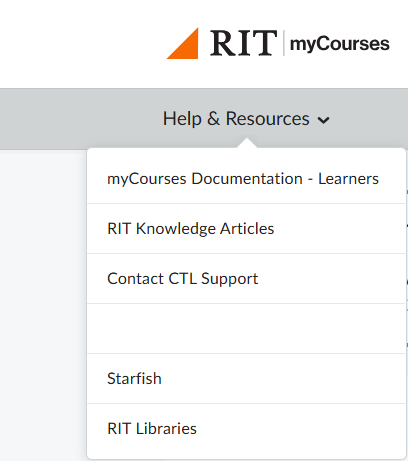
- At the upper left side of the homepage, click the 'Help & Resources' dropdown and select Starfish from the options.
Access Through SIS
Follow these steps to access Starfish through SIS
- Navigate to www.rit.edu/sis
- Click on Student Information System
- Log in using your RIT username and password
- Click on the Starfish icon on your Student Home page

Common Access Errors
If you are trying to log into Starfish and have never logged into SIS, you may experience the error message below
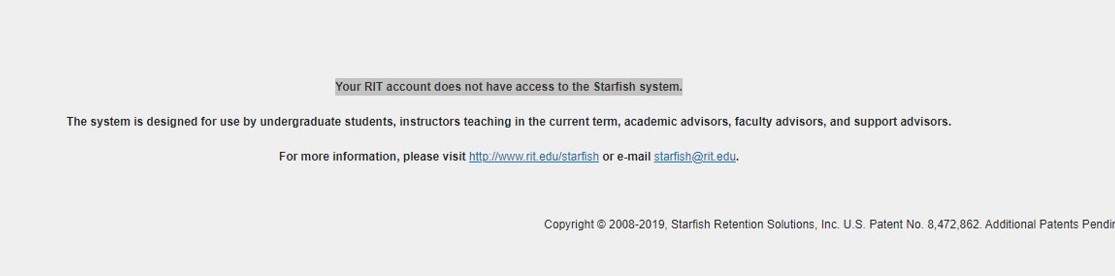
Please log in to SIS and wait until the next day to allow time for your information to sync from SIS to Starfish.
Starfish Quick Links: