Digital Backgrounds
Bring a little RIT spirit to your online meetings, classes, and events. Download one of these RIT images and use it as a virtual background in Zoom or Microsoft Teams to create a professional, branded look wherever you're connecting from.




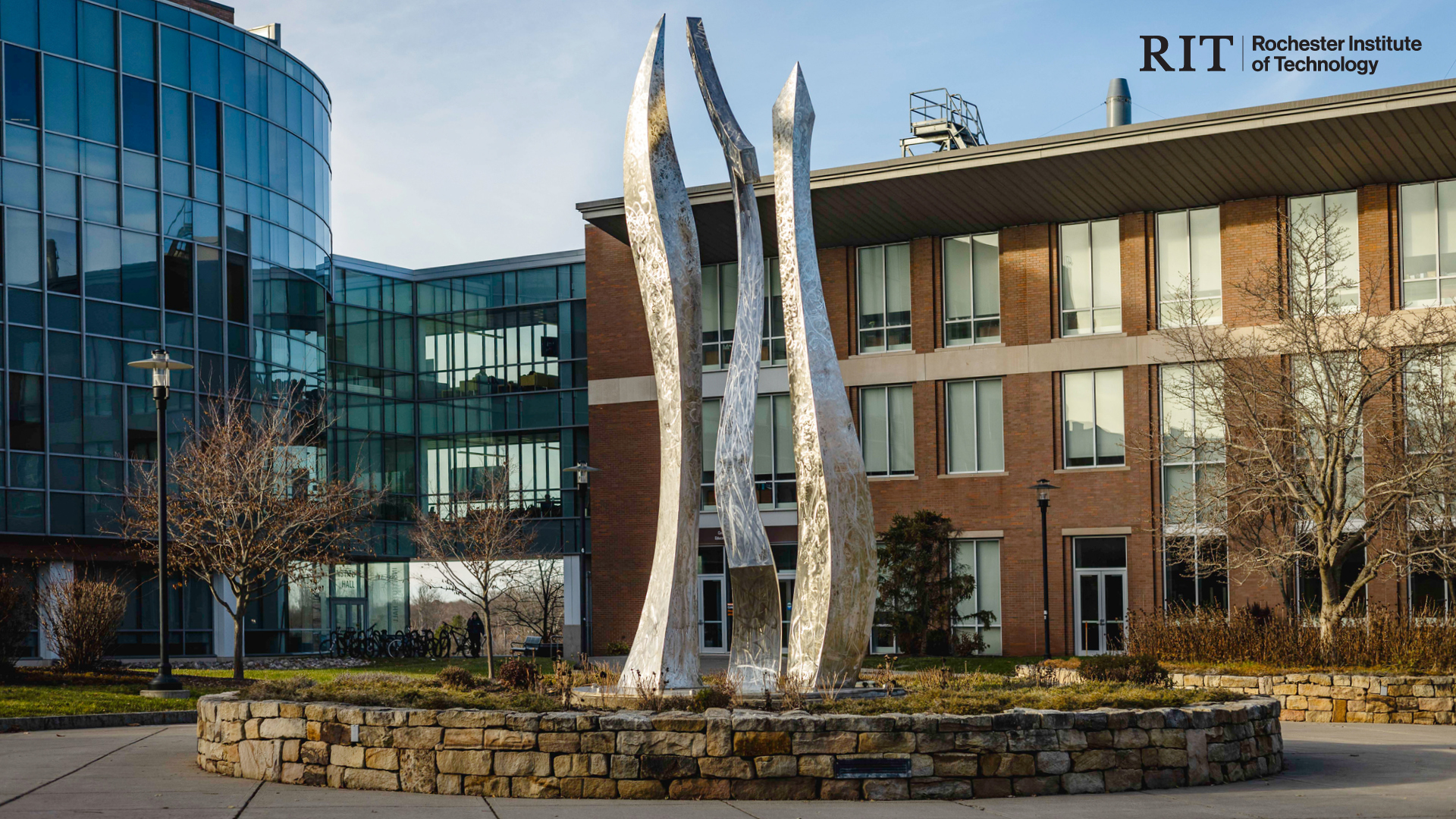
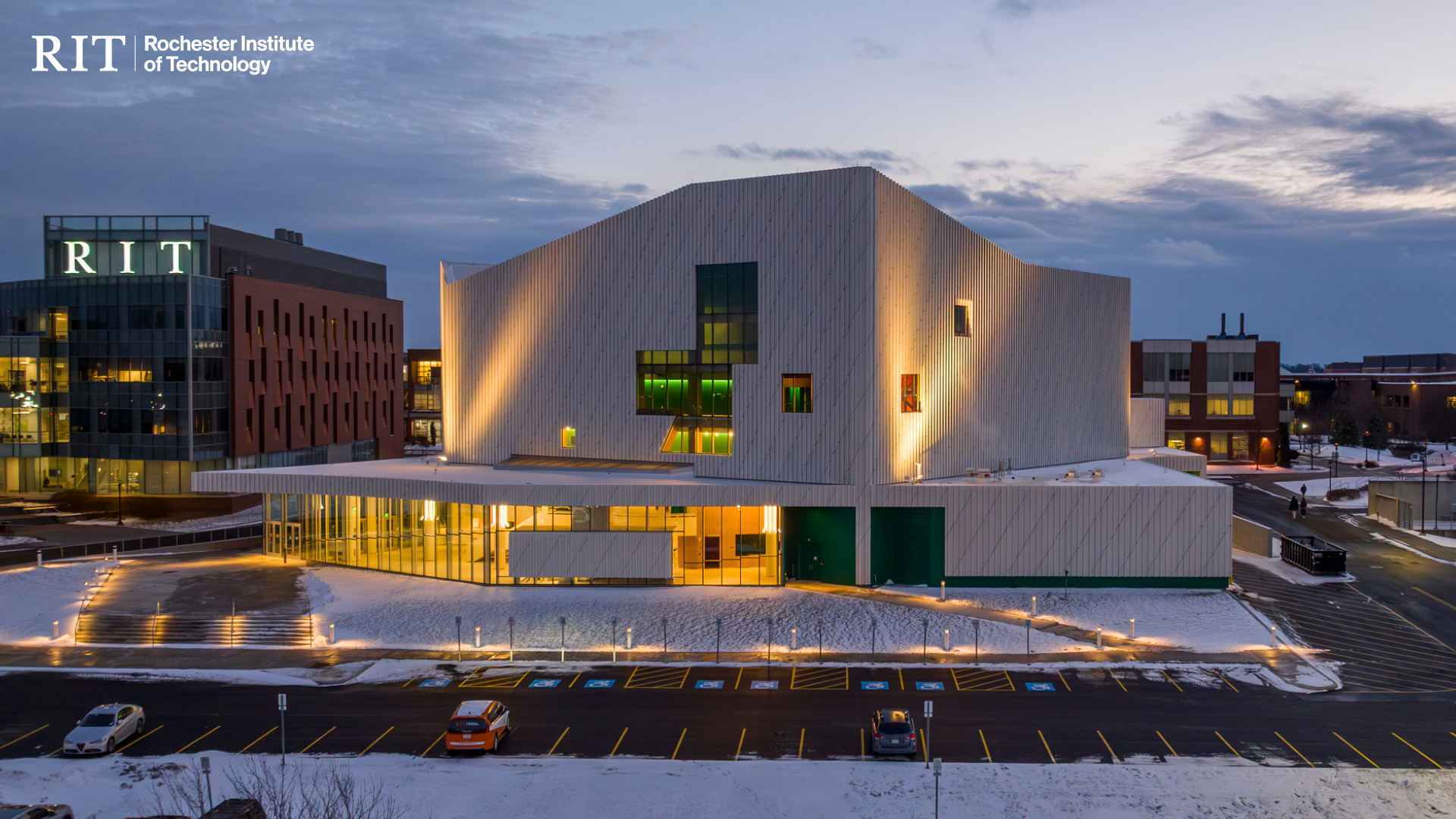














Instructions for adding a Zoom virtual background
- During a meeting or webinar, click the arrow next to Stop Video in the lower-left corner of the Zoom window and select Choose Virtual Background.
- Click the + icon and select Add Image (or Add Video), then browse to the file on your computer.
- Select your preferred background and it will appear behind you during your meeting.
- More information is available on Zoom's virtual background support page.
Instructions for adding a Microsoft Teams background
- Before joining a meeting, select Background filters. During a meeting, select More > Effects and avatars.
- Choose Add new and upload your preferred RIT background image.
- Select the image and click Apply to use it as your background.
- More information is available on Microsoft's support page for custom backgrounds in Teams.